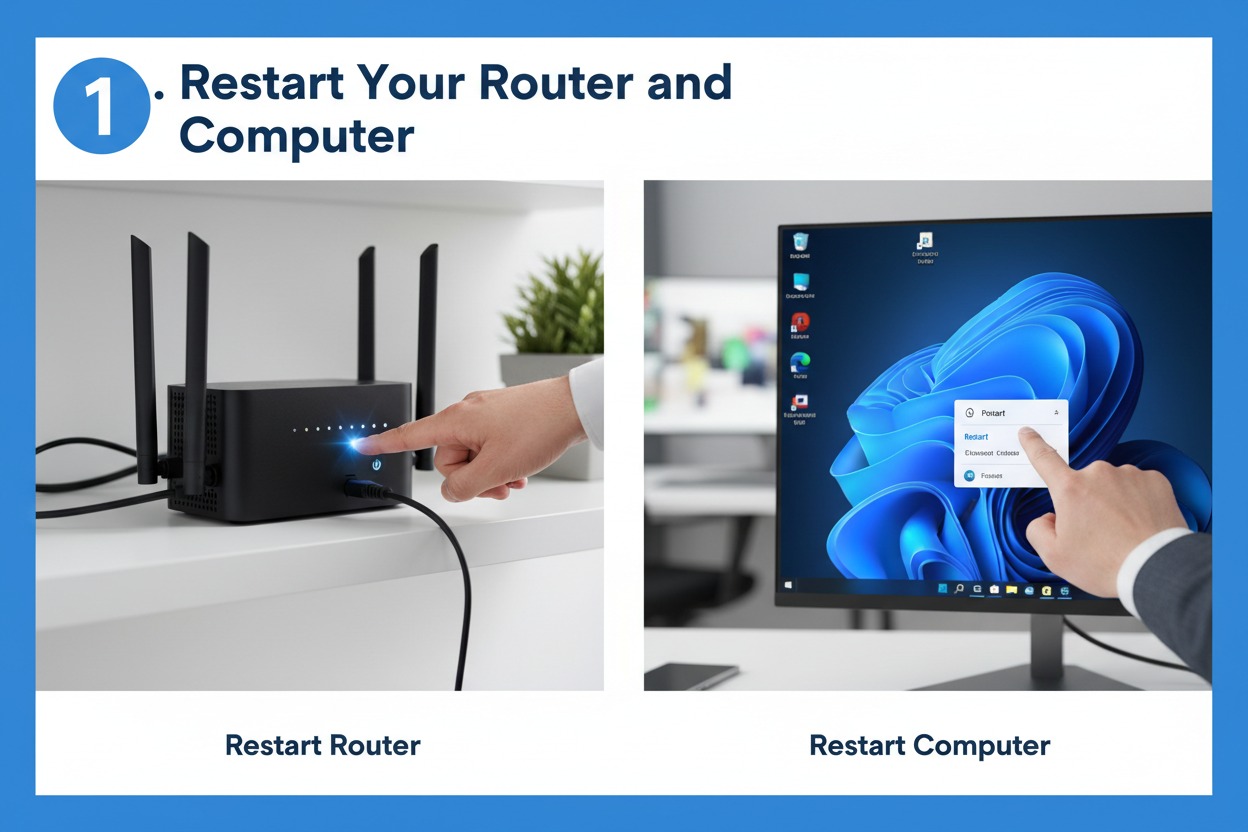
Dealing with a spotty or non-existent Wi-Fi connection on Windows 11 can be incredibly frustrating, especially when you are in the middle of a project or trying to unwind with some streaming. While Windows 11 is designed to be user-friendly, network glitches can still occur due to driver conflicts, configuration errors, or simple software bugs. Fortunately, most of these problems are straightforward to resolve if you know where to look and what tools to use.
Troubleshooting Your Windows 11 Wi-Fi Settings
The first step in diagnosing your Wi-Fi woes is to investigate the Settings menu to ensure that everything is configured correctly. Often, a simple toggle of the Wi-Fi switch can reset the network adapter and clear out minor software hiccups. Navigate to Settings > Network & internet and ensure that your Wi-Fi toggle is firmly set to "On" and that you haven’t accidentally enabled Airplane Mode, which is a common culprit for sudden signal loss.
If the basic toggle doesn’t work, you should verify your network properties to ensure your computer is correctly identifying the connection. Click on the arrow next to your Wi-Fi network name to view details like the IP address and signal strength. If you see "No internet" or an IP address that looks like a string of zeros, your computer might be having trouble communicating with your router, which often points to a DHCP configuration issue or a temporary authentication error.
Finally, consider the "Forget" option if you are having trouble connecting to a specific network you have used before. By selecting "Manage known networks" within the Wi-Fi settings, you can remove the profile for your router and re-enter the password from scratch. This process forces Windows to perform a clean handshake with the router, effectively clearing out any corrupted credentials or outdated security keys that might be preventing a successful connection.
Quick Ways to Restore Your Internet Connection
When settings aren’t the issue, it is time to look at the hardware drivers, which act as the bridge between your Windows 11 OS and your network card. Right-click the Start button and open the Device Manager, where you can find your wireless adapter under the "Network adapters" section. If you see a yellow exclamation mark, right-click the device and choose "Update driver," or if the issue started after a recent update, select "Roll back driver" to revert to a previous, stable version.
If software updates don’t fix the problem, Windows 11 includes a powerful built-in Network Troubleshooter that can automate the process for you. Go to Settings > System > Troubleshoot > Other troubleshooters and run the Network and Internet troubleshooter. This tool will systematically check your network adapter, verify your DNS settings, and reset your TCP/IP stack, which can often resolve deep-seated connectivity issues without requiring you to dive into the Command Prompt yourself.
As a last resort, performing a Network Reset is the "nuclear option" that restores all networking components to their factory defaults. This will remove and reinstall your network adapters and set other networking components back to their original settings, requiring you to re-enter your Wi-Fi passwords and reconfigure any VPN software you might use. It is a highly effective way to clear out stubborn configuration conflicts that have accumulated over time, and it is usually the final step before concluding that the issue might be with your router or ISP rather than your PC.
Resolving Wi-Fi issues on Windows 11 doesn’t have to be a technical nightmare if you follow these systematic steps. By starting with basic settings, moving on to driver management, and utilizing the built-in diagnostic tools, you can resolve the vast majority of connectivity problems on your own. If you have tried all these methods and still find yourself offline, it might be time to check your router’s status or contact your internet service provider to ensure the problem isn’t occurring further up the line.